Shorts GUIDE
YouTube
Set the Shorts feed limit to zero in the YouTube app. It adds a stopping point to the feed; it is not a permanent block on every Short.
Set your Shorts limit to zero
- Open YouTube and sign in. Tap You at the bottom.
- Tap the Settings gear, then Time management.
- Open Shorts feed limit. Turn the limit on if needed.
- Choose 0 minutes.
The Shorts feed reaches its limit immediately. You can still choose to ignore the reminder. Individual Shorts and Shorts in Subscriptions may remain.
Keep YouTube focused on subscriptions
- Bookmark youtube.com/feed/subscriptions and use it instead of Home.
- For hiding Shorts across the website, consider a browser extension such as Unhook, then enable its Shorts-hiding option.
The zero-minute setting is documented for the app. A subscriptions bookmark does not filter out Shorts from subscribed channels. Extensions apply only in the browser where installed; review their permissions.
SEE WHAT TO LOOK FOR
Screenshots
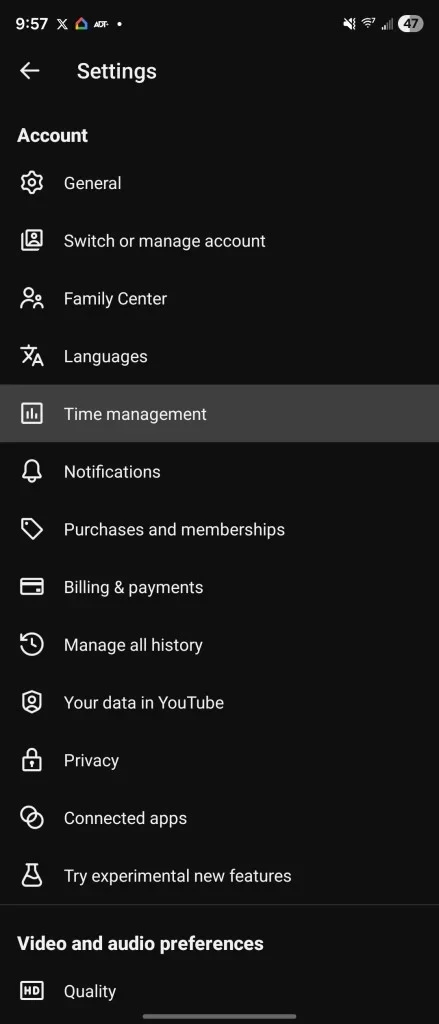
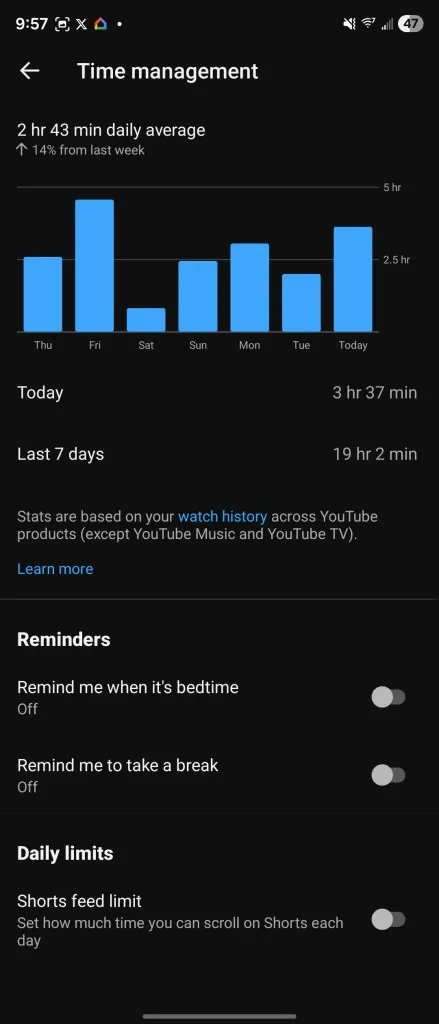
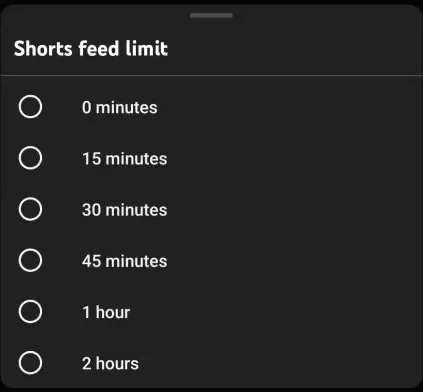
Android app screenshots, April 2026, by Ben Schoon / 9to5Google. The final image is cropped to the limit menu. Layouts may vary. Image source ↗
Sources
Help pages checked 18 November 2026. These are documented instructions; not every mobile app was tested on a device.