For You feed GUIDE
TikTok
TikTok’s video feed is the main product. You can limit your time, but its screen-time setting does not remove the feed.
Add a daily screen-time limit
- Tap Profile → ☰ → Settings and privacy.
- Open Time and well-being → Screen time.
- Turn on Daily screen time.
- Follow the prompts and choose your daily limit.
What this does
TikTok notifies you at the limit. You can return using the on-screen passcode, so this is a reminder rather than a strict block. For a firmer boundary, use a phone app limit.
Set a limit on the website
- Click your profile picture → Settings.
- Open Screen time → Daily screen time.
- Turn it on and choose a limit.
What this does
TikTok says screen-time setting changes are reflected across its app and web versions.
SEE WHAT TO LOOK FOR
Screenshots
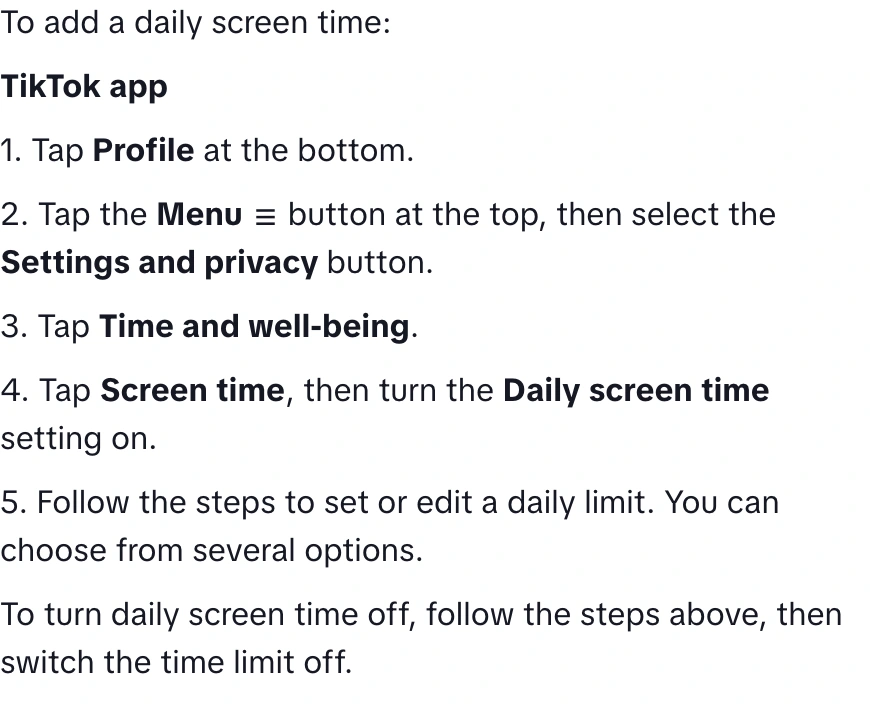
Screenshot of TikTok’s official Help Center, captured 18 November 2026. This shows help instructions, not an in-app screen. Image source ↗
Sources
Help pages checked 18 November 2026. These are documented instructions; not every mobile app was tested on a device.