Video feed GUIDE
X / Twitter
You can stop videos and GIFs from automatically playing. This does not remove video posts or the video feed.
Set video autoplay to Never
- Open Settings and privacy from your profile menu.
- Go to Accessibility, display, and languages → Data usage.
- Tap Video autoplay.
- Choose Never.
What this does
Videos stop autoplaying in supported feed surfaces. Apply the preference separately on the website and other devices.
Turn autoplay off on the website
- Open More → Settings and privacy.
- Choose Accessibility, display, and languages → Data usage → Autoplay.
- Select Never. You can also open the Autoplay settings page directly.
What this does
This is a playback setting for this browser/device, not a way to remove all video.
SEE WHAT TO LOOK FOR
Screenshots
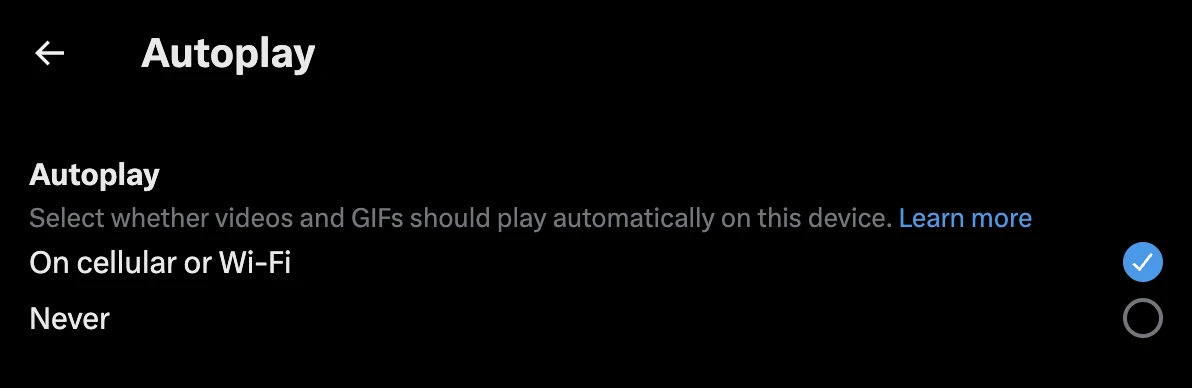
Actual X web settings screenshot, captured 18 November 2026. Cropped to omit account details. Image source ↗
Sources
Help pages checked 18 November 2026. These are documented instructions; not every mobile app was tested on a device.