Video feed GUIDE
Turn autoplay off to make your feed quieter. LinkedIn’s vertical video viewer remains available.
Choose Never autoplay videos
- Tap your profile photo → Settings & Privacy.
- Open Account preferences.
- Under General Preferences, choose Autoplay Videos.
- Choose Never autoplay videos.
What this does
Videos stop starting automatically in the feed. LinkedIn says it has no on/off toggle for auto-looping videos under 30 seconds.
Disable autoplay in your feed
- Click Me → Settings & Privacy.
- Go to Account preferences → General preferences → Autoplay videos.
- Turn Autoplay videos in your feed off.
What this does
The setting controls feed autoplay; it does not hide all video posts.
SEE WHAT TO LOOK FOR
Screenshots
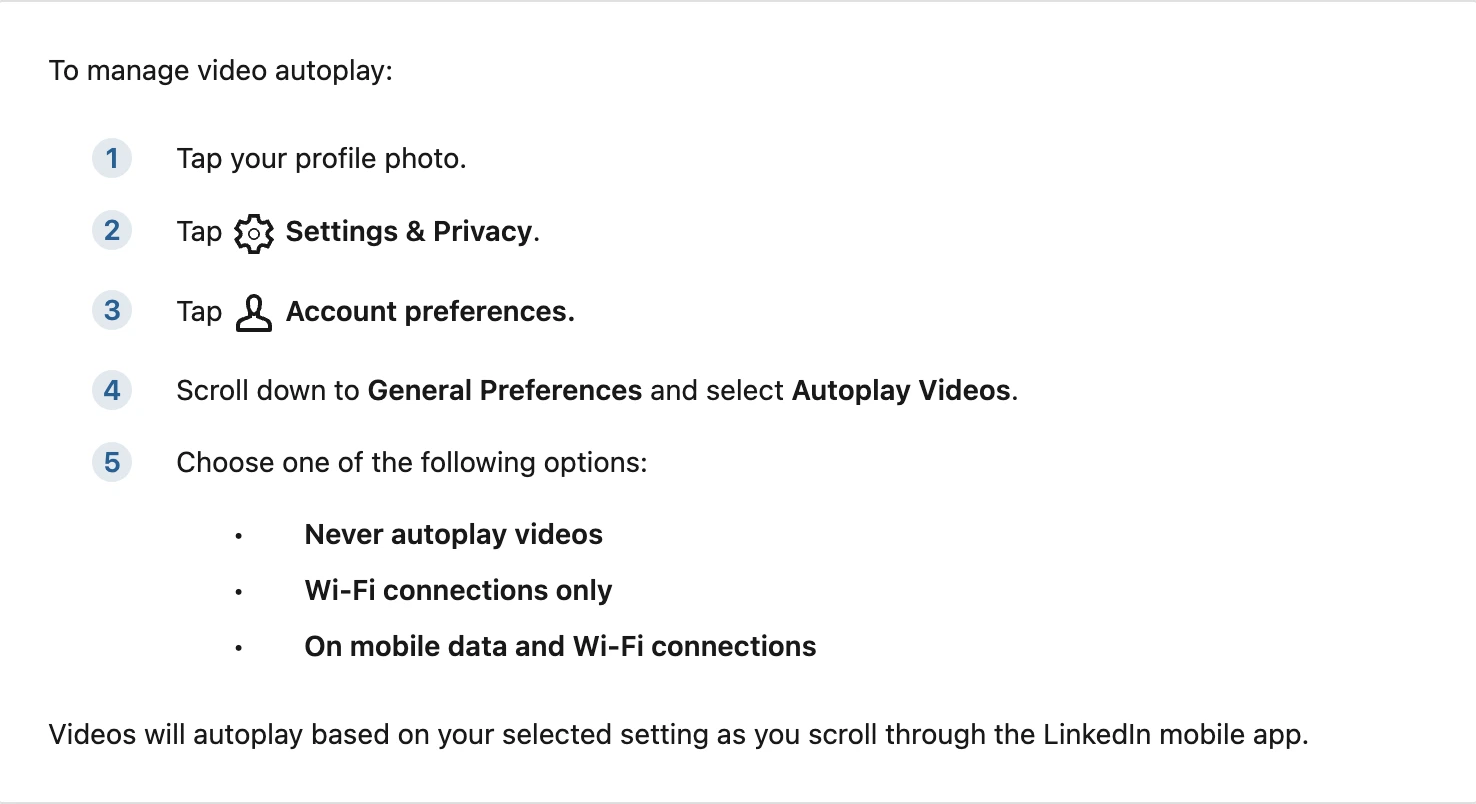
Screenshot of LinkedIn Help’s Mobile tab, captured 18 November 2026. This shows help instructions, not an in-app screen. Image source ↗
Sources
Help pages checked 18 November 2026. These are documented instructions; not every mobile app was tested on a device.