Video Pins GUIDE
Pinterest lets you manage Video Pin autoplay. Its documented mobile controls are specifically for cellular data, so they do not promise to stop playback on Wi-Fi.
Stop desktop video autoplay
- Open Pinterest and click the more-options / settings icon at the bottom left.
- Choose Settings → Social permissions.
- Turn off Autoplay videos on desktop.
- Click Save.
What this does
Video Pins stop starting automatically on desktop. Pins remain in feeds and search.
Stop autoplay on cellular data
- Open your profile and its Settings menu.
- On Android, look in Social permissions. On iPhone, look in Privacy and data. Menu placement can vary.
- Turn off Autoplay videos on cellular data.
What this does
This setting is limited to cellular data. It does not guarantee that videos stop autoplaying on Wi-Fi.
SEE WHAT TO LOOK FOR
Screenshots
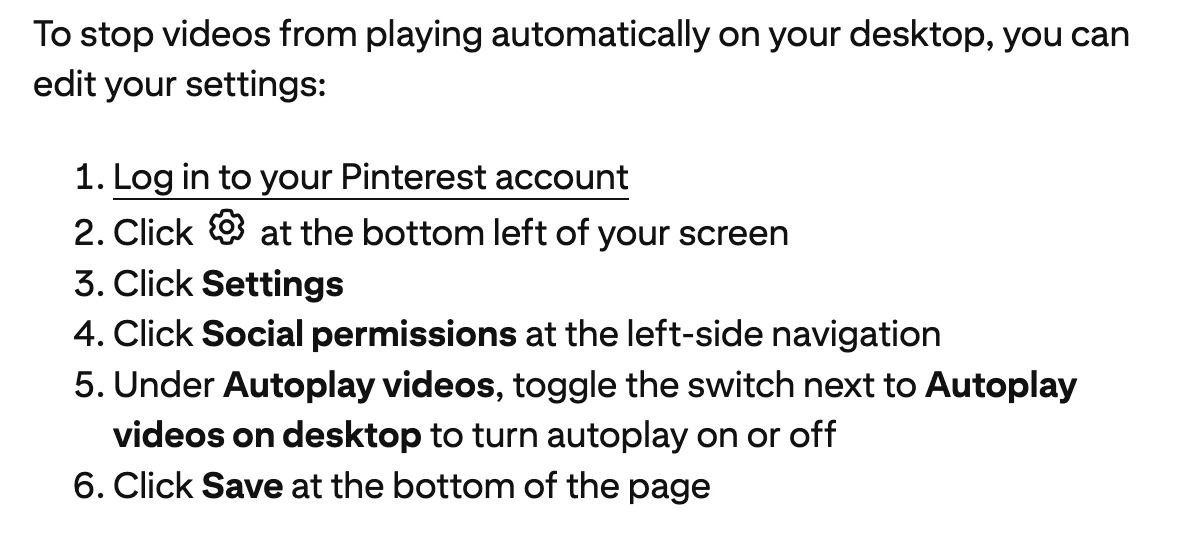
Screenshot of Pinterest Help, captured 18 November 2026. This shows help instructions, not an in-app screen. Image source ↗
Sources
Help pages checked 18 November 2026. These are documented instructions; not every mobile app was tested on a device.